
Sending Quarterly Update Emails Just Got Easier in 4Degrees
Keeping investors updated is one of the most important parts of relationship management — but it can also be time-consuming to draft and send individual messages.
With 4Degrees Email Campaigns, you can now send professional quarterly updates faster by selecting your investor list, customizing your email, and inserting personalized variables like first name or deal stage — all in just a few clicks.
This guide will walk you through how to send a Quarterly Update Email using 4Degrees.
1. Navigate to Your List
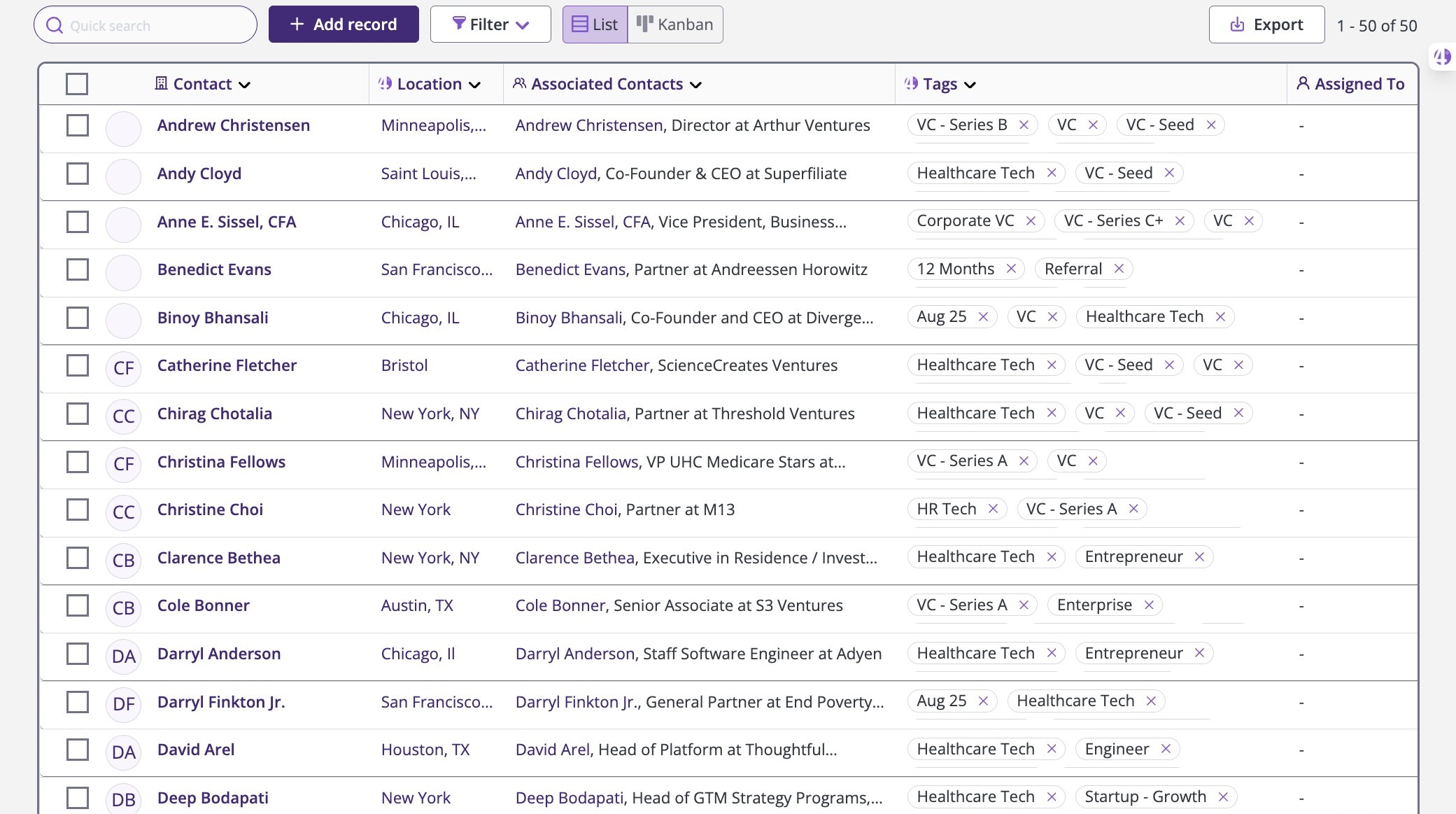
Start by opening the list of contacts or companies you want to email.
Go to your list view here:
https://app.4degrees.ai/deals
2. Select the Contacts or Companies You Want to Email
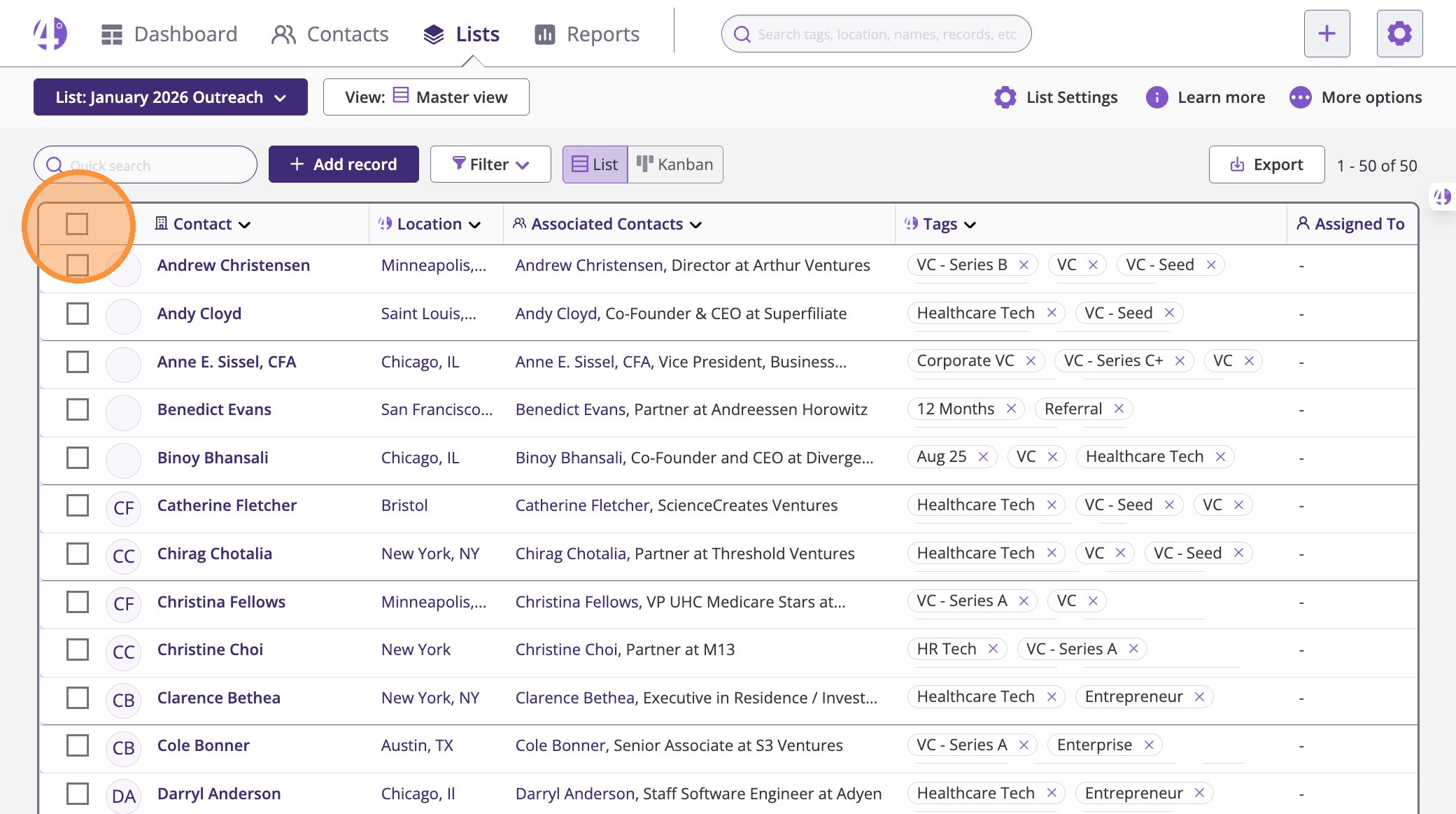
In the list view:
Click the main checkbox at the top of the list to select all contacts
(or select specific ones manually)
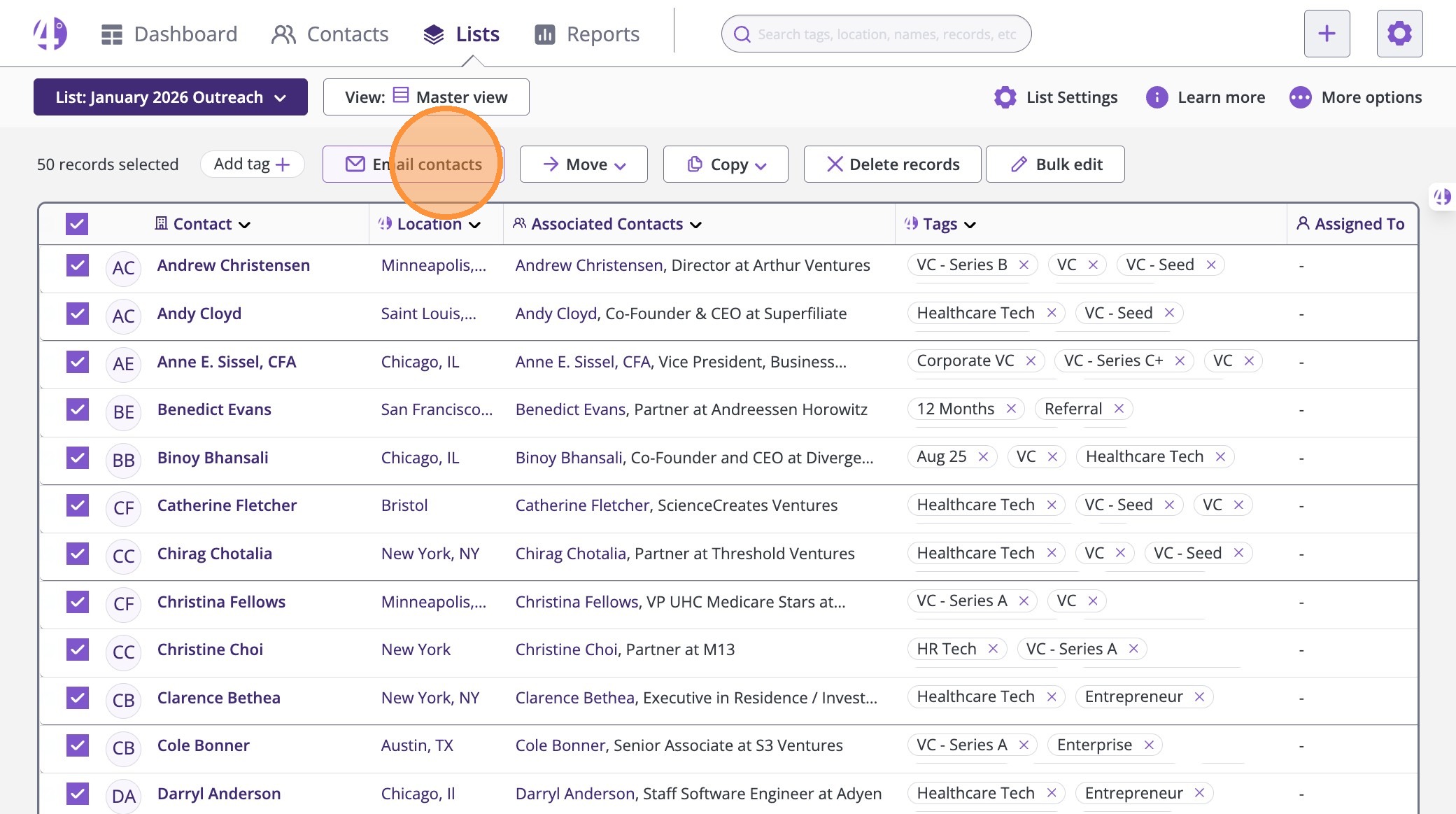
3. Once selected, click Email contacts
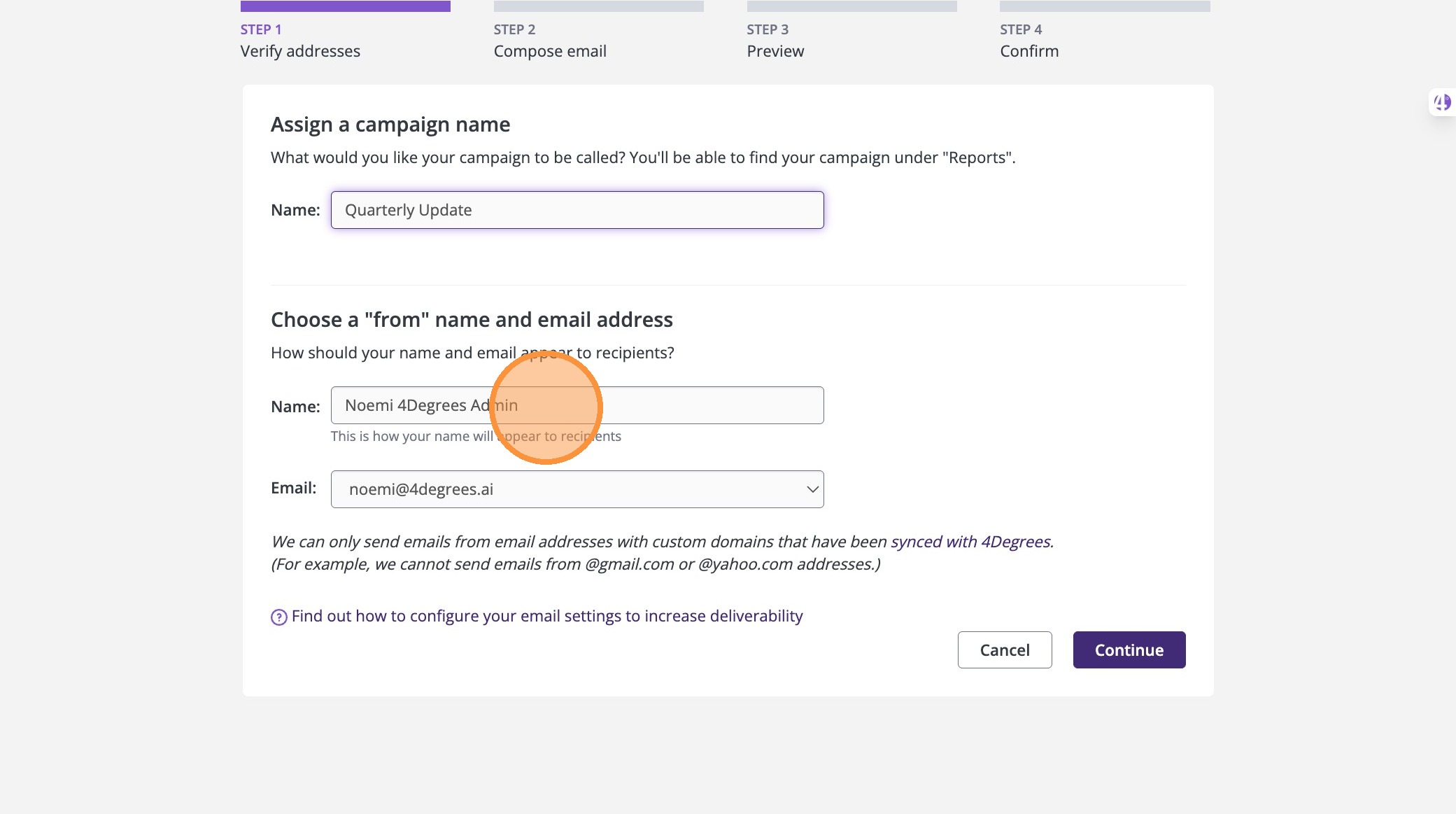
4. Name Your Campaign and Choose a Sender
Next, you’ll be prompted to set up your campaign details:
- Enter a Campaign Name (example: Quarterly Update)
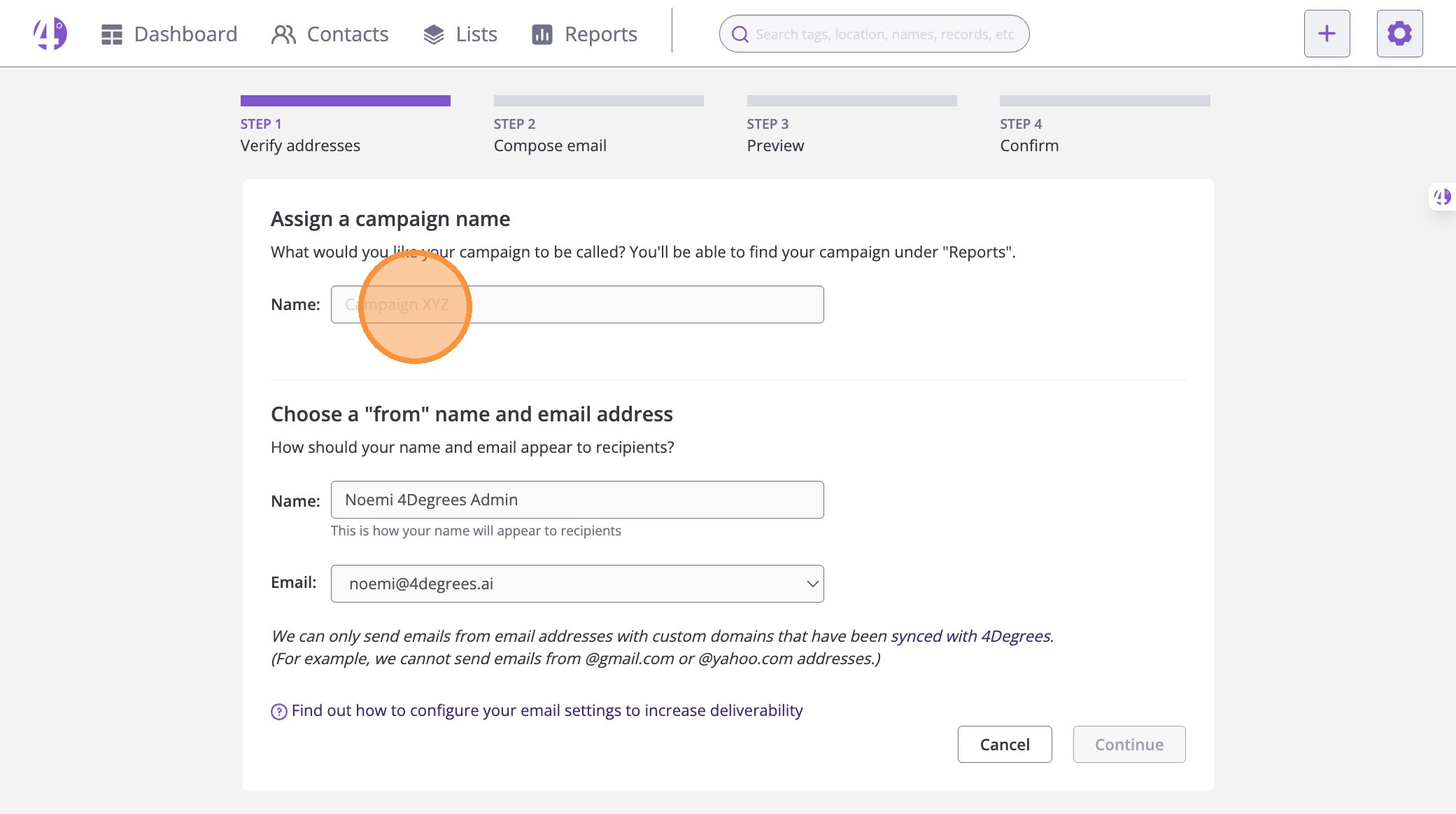
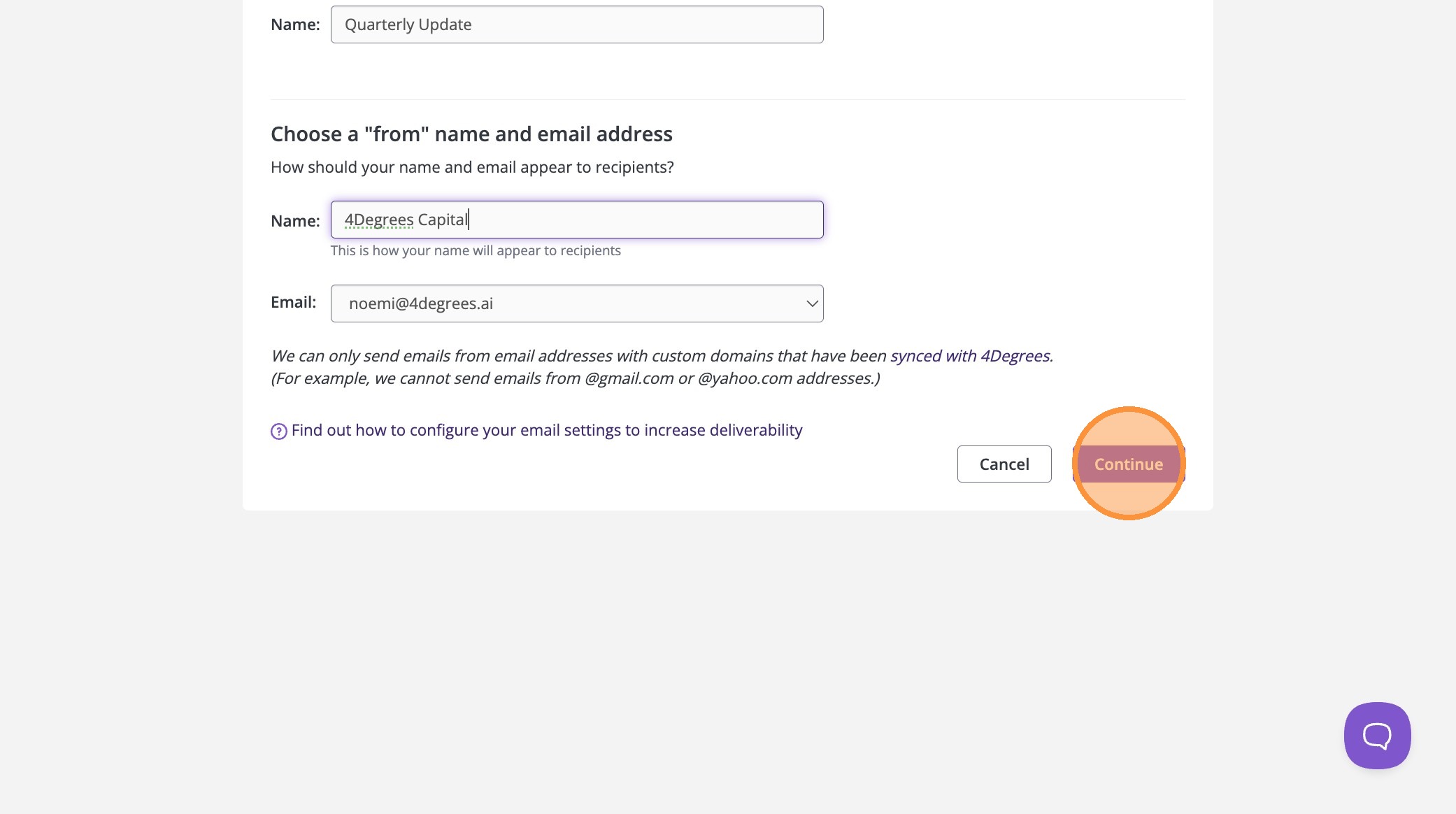
5. Select the From Name you want recipients to see
6. Select the From Email Address
Once complete, click Continue.
7. Review the Email List Before Sending
Before composing your email, 4Degrees will ask you to confirm the emails for the selected contacts.
- Review the list
- Check the confirmation checkbox
- Click Continue

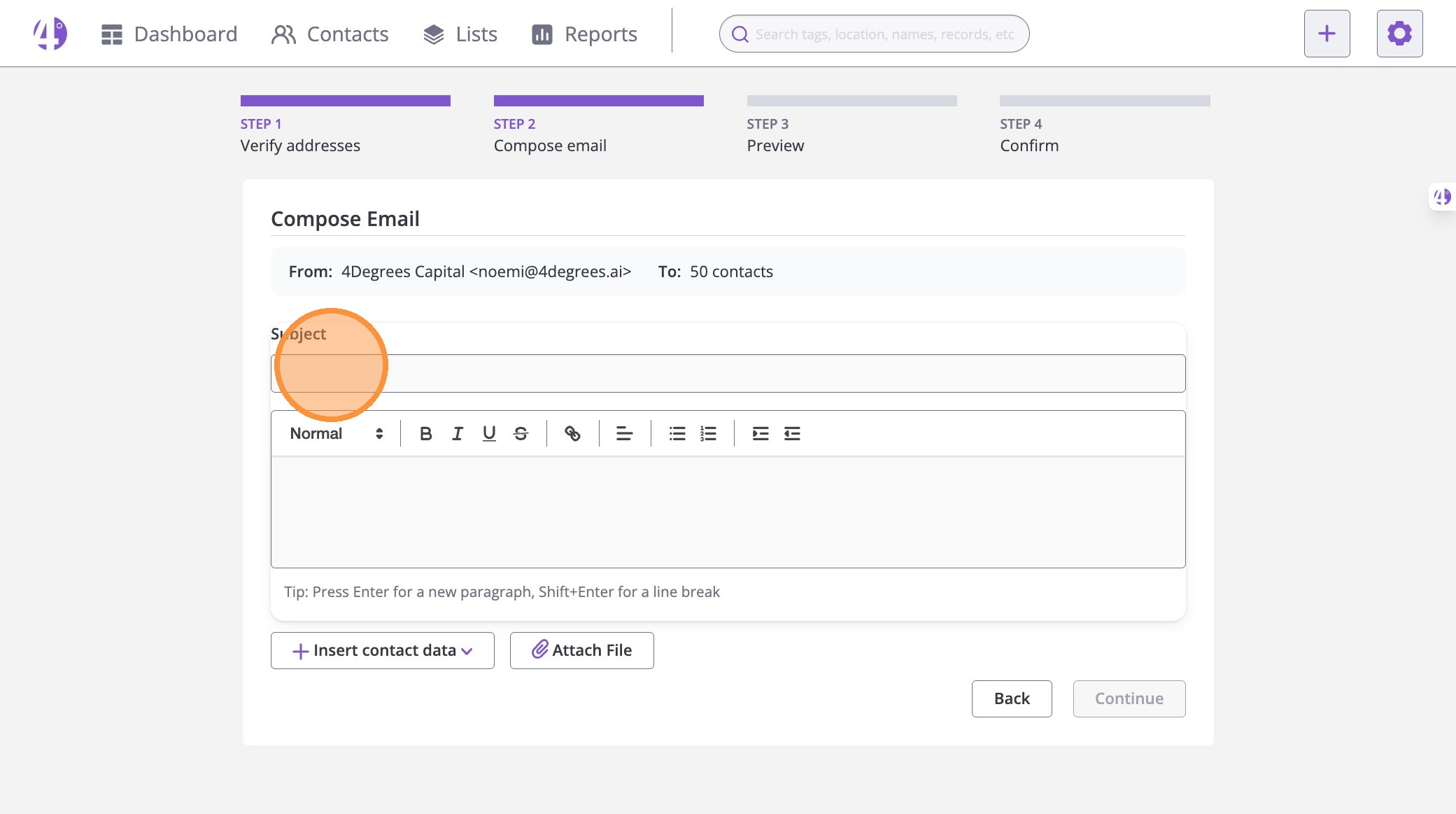
8. Add Your Subject Line and Write Your Email
Now it’s time to compose your update.
- Enter a subject line (example: Q1 2026 Investor Update)
9. - Write your quarterly update message in the email body
This is where you can share updates, key milestones, upcoming fundraise details, or requests for intros.
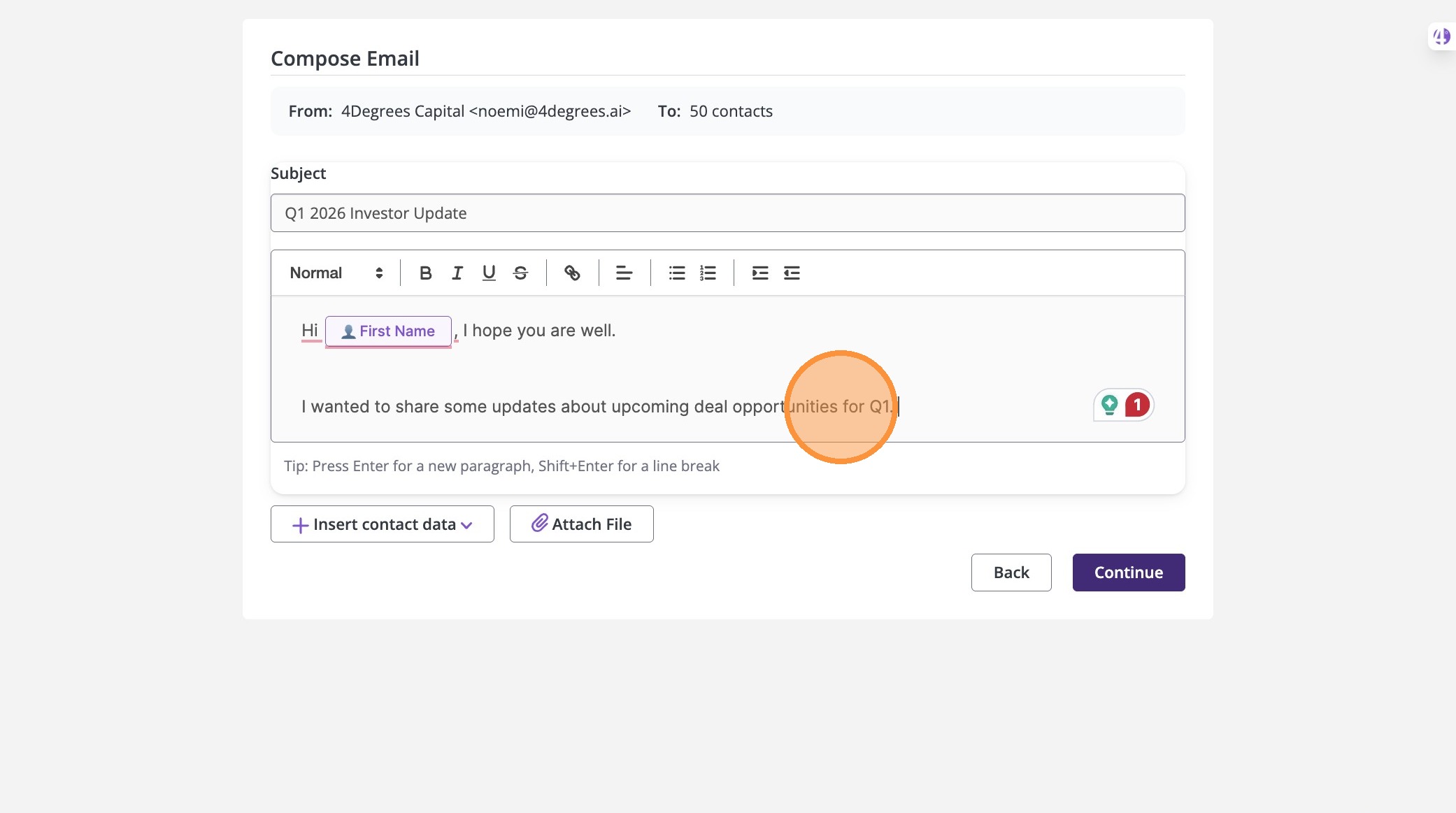
10. Personalize Your Email with Variables
Want to make your email feel personal without writing individual messages?
Click Insert Contact Data to add variables like:
-
First Name
-
Full Name
-
Company Name
-
Deal Name
-
Deal Stage
These fields automatically populate per recipient.
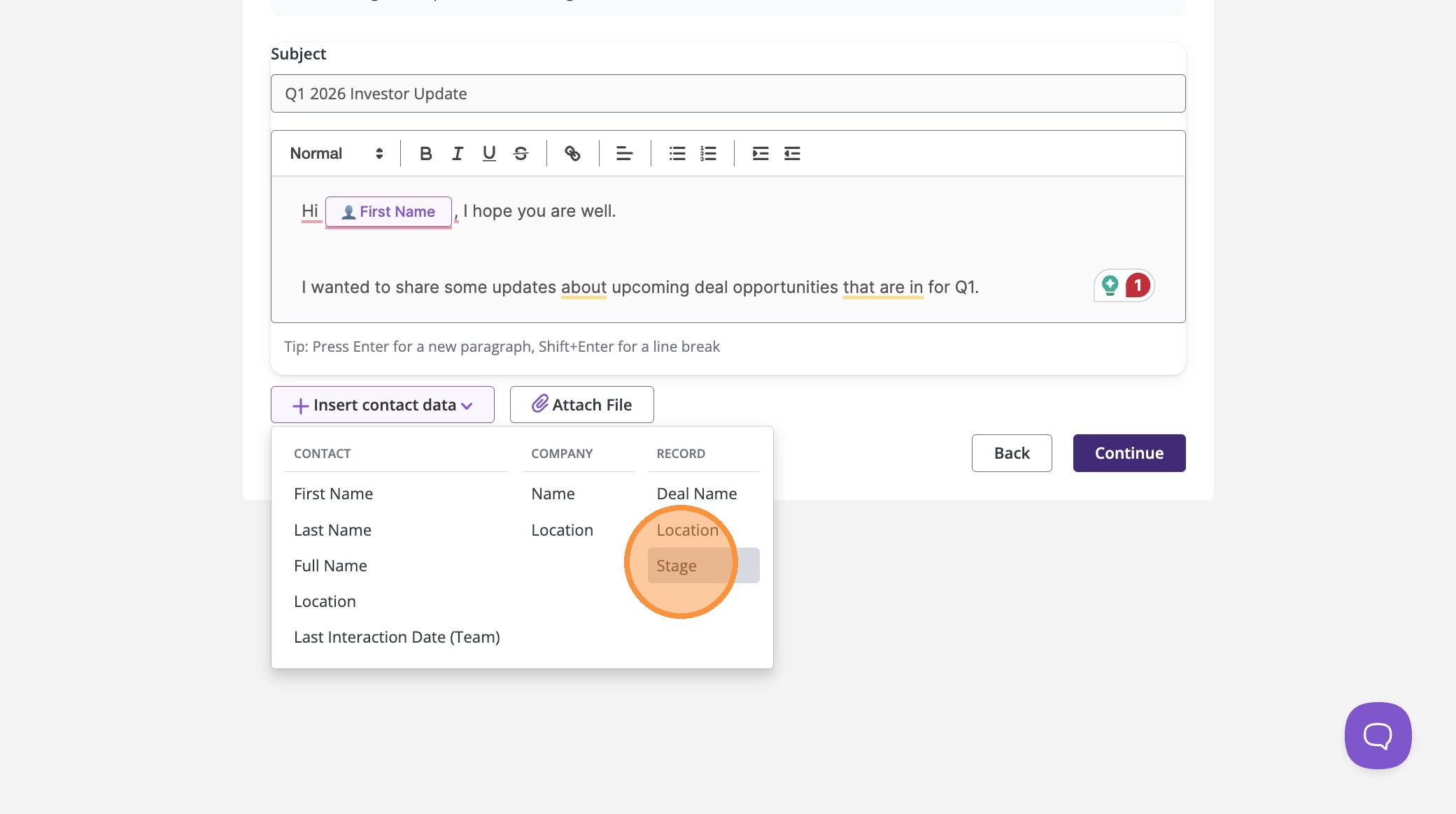
11. Click "Continue"
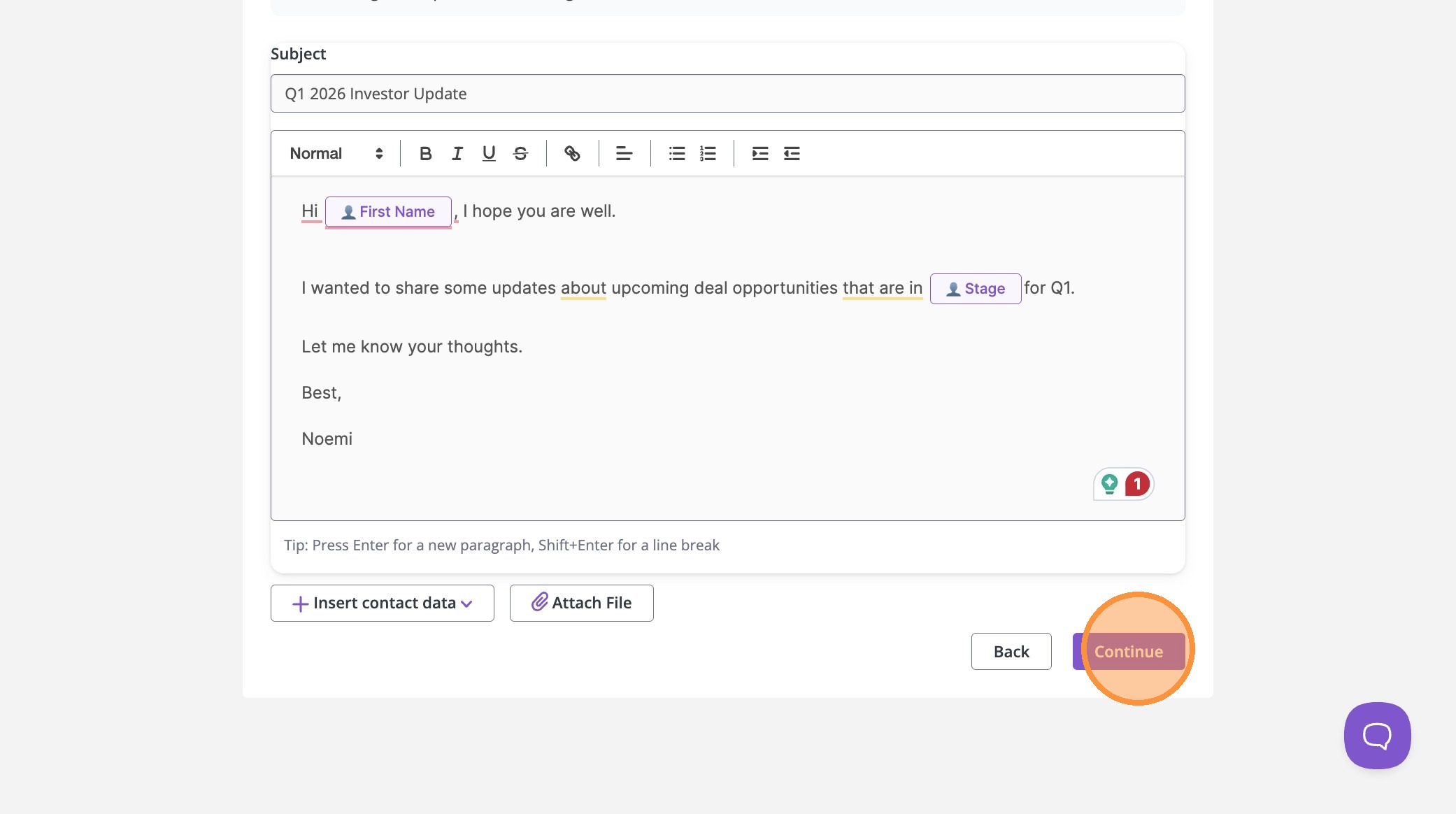
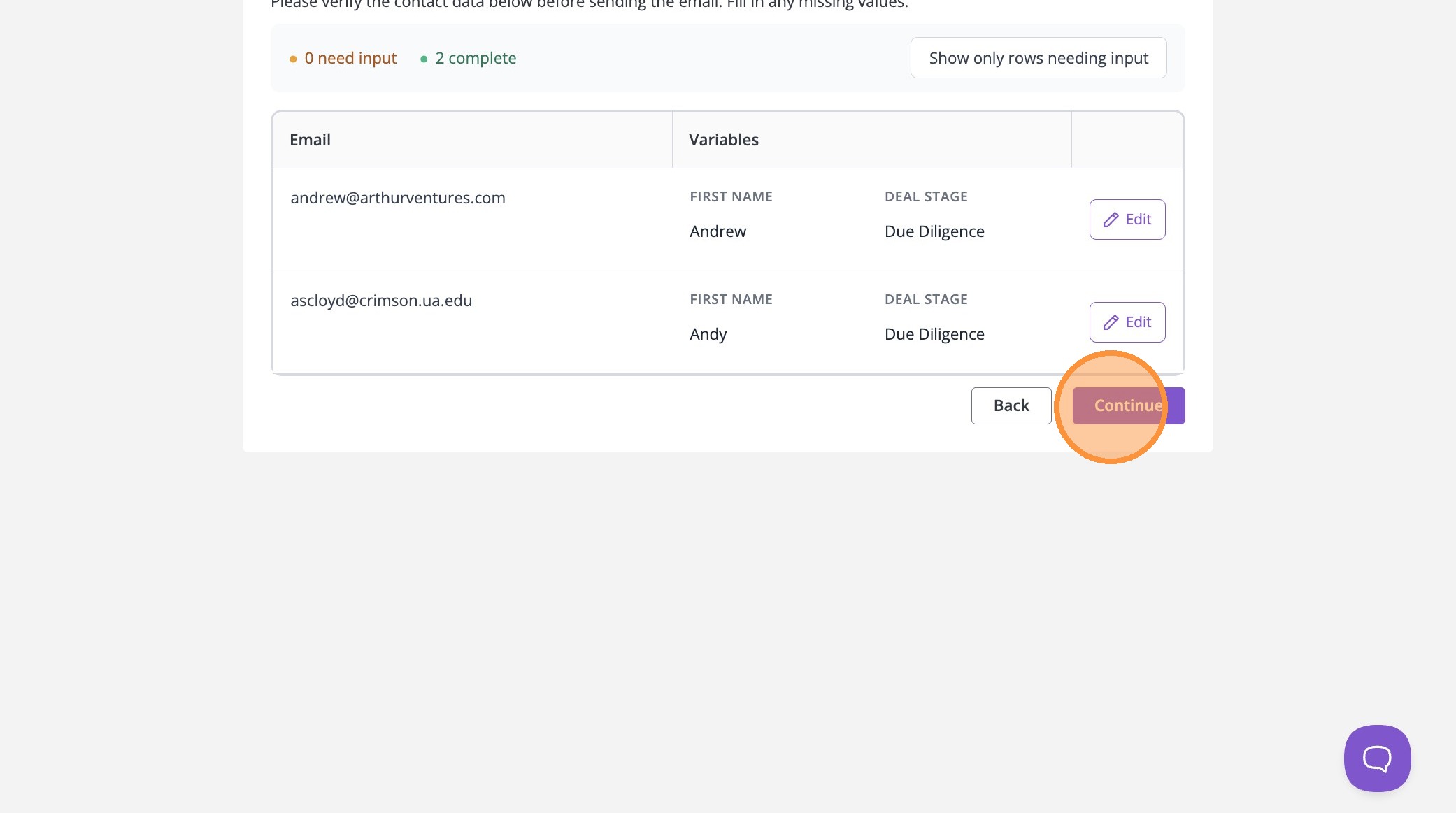
12. Verify Missing Variables (If Needed)
If any contact is missing a required field (like Deal Stage), 4Degrees will prompt you to review and fill in missing values.
You can:
-
Manually type in missing data
-
Edit variables
-
Click the checkmark when done [[enhance your email outreach str…]]
This ensures your email looks polished for every recipient.
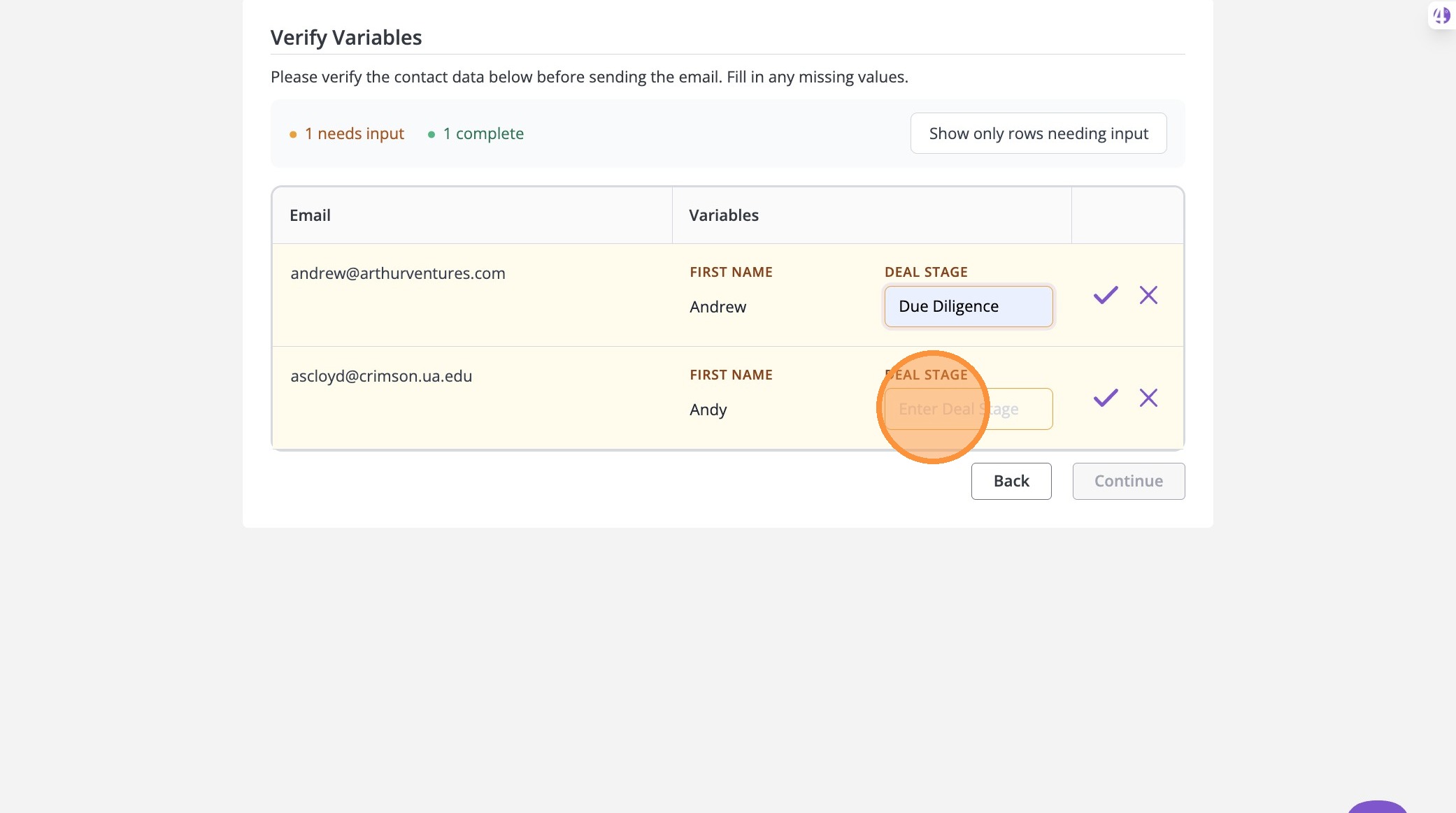
13. Click the checkmark when done!
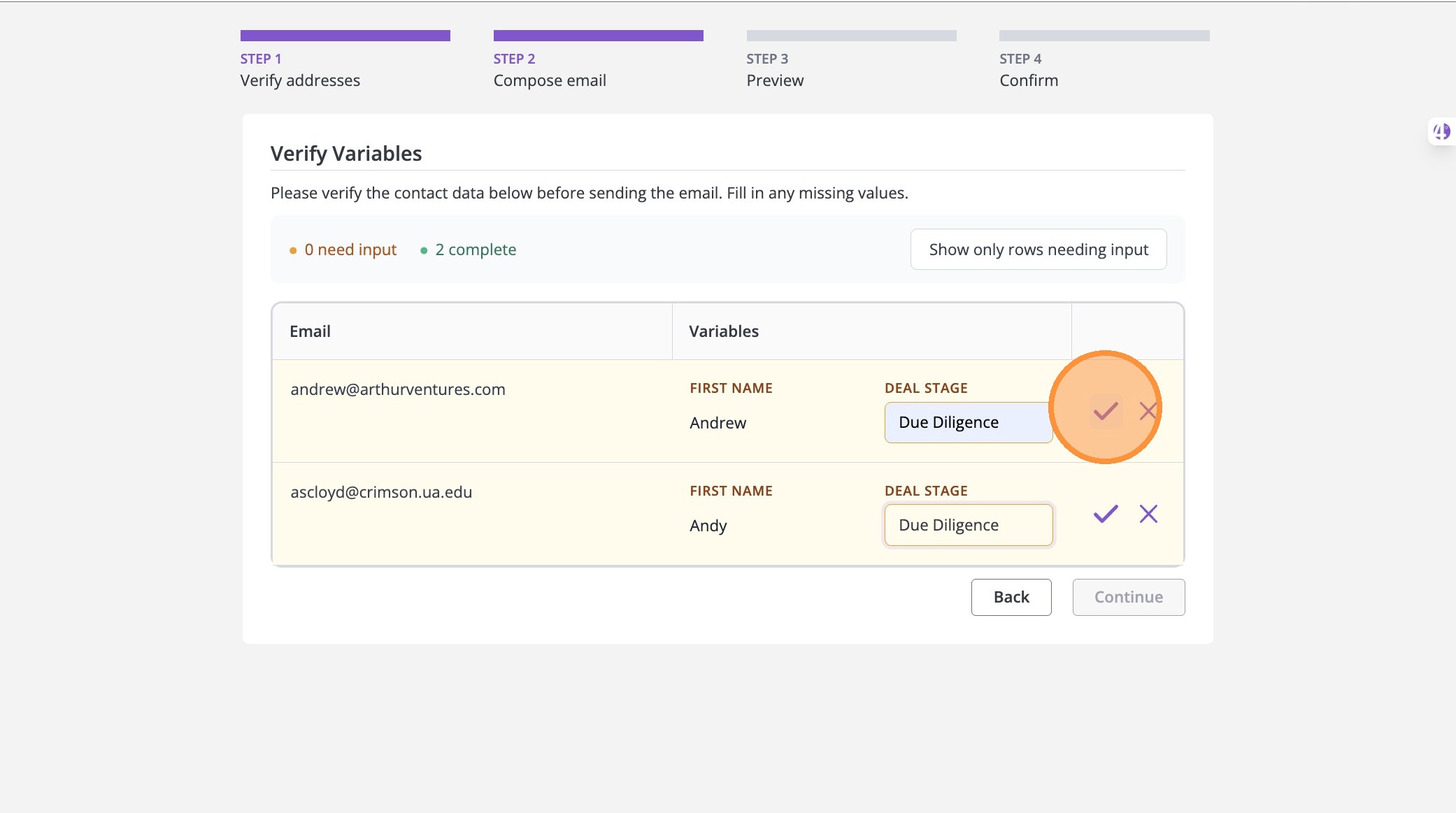
14. Click "Continue"
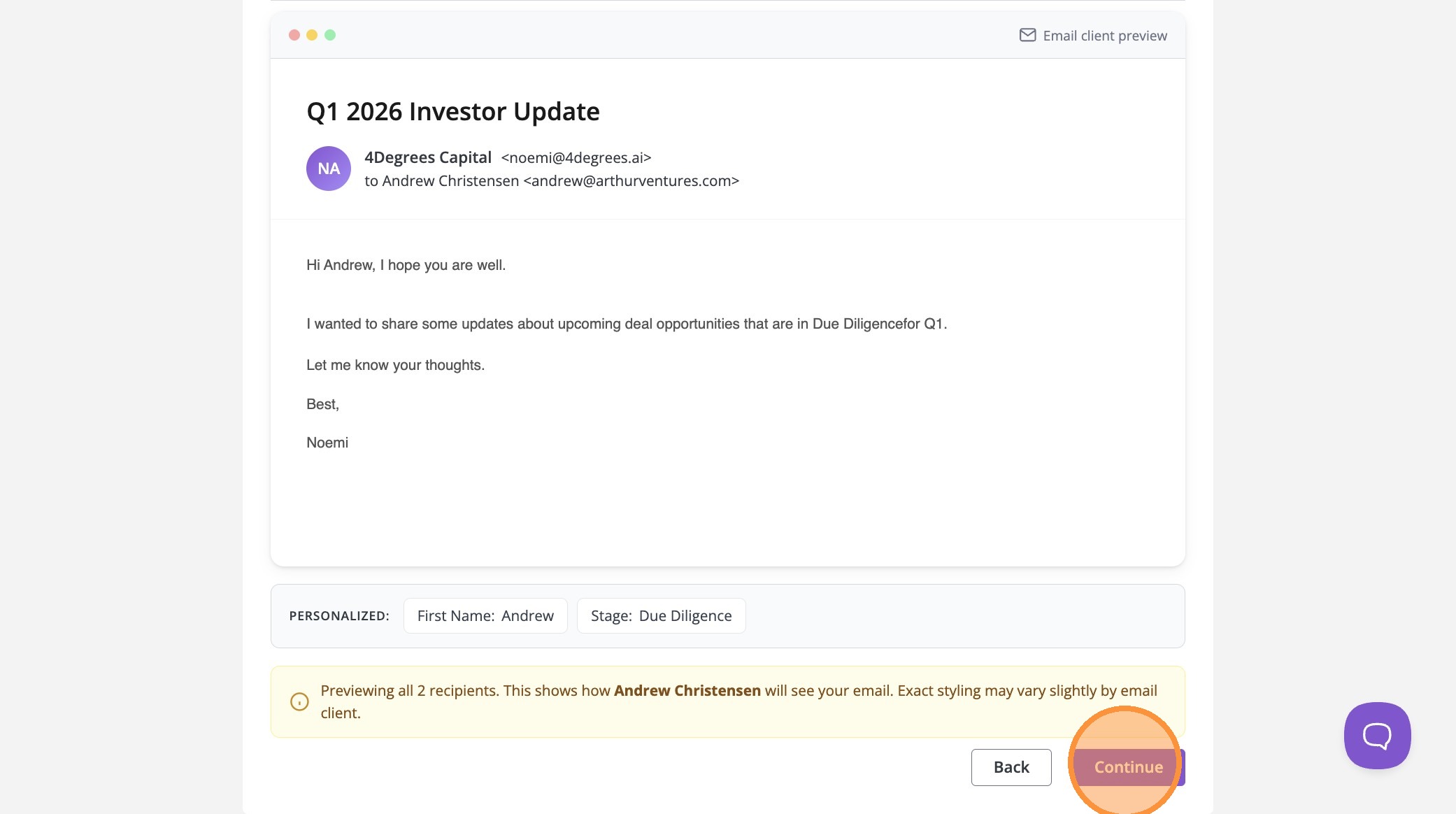
15. Preview the Final Email
Before sending, you’ll get a preview of how the email will appear for each recipient.
Take a moment to review:
-
Personalization fields
-
Subject line
-
Formatting and spacing
Once ready, click Continue.
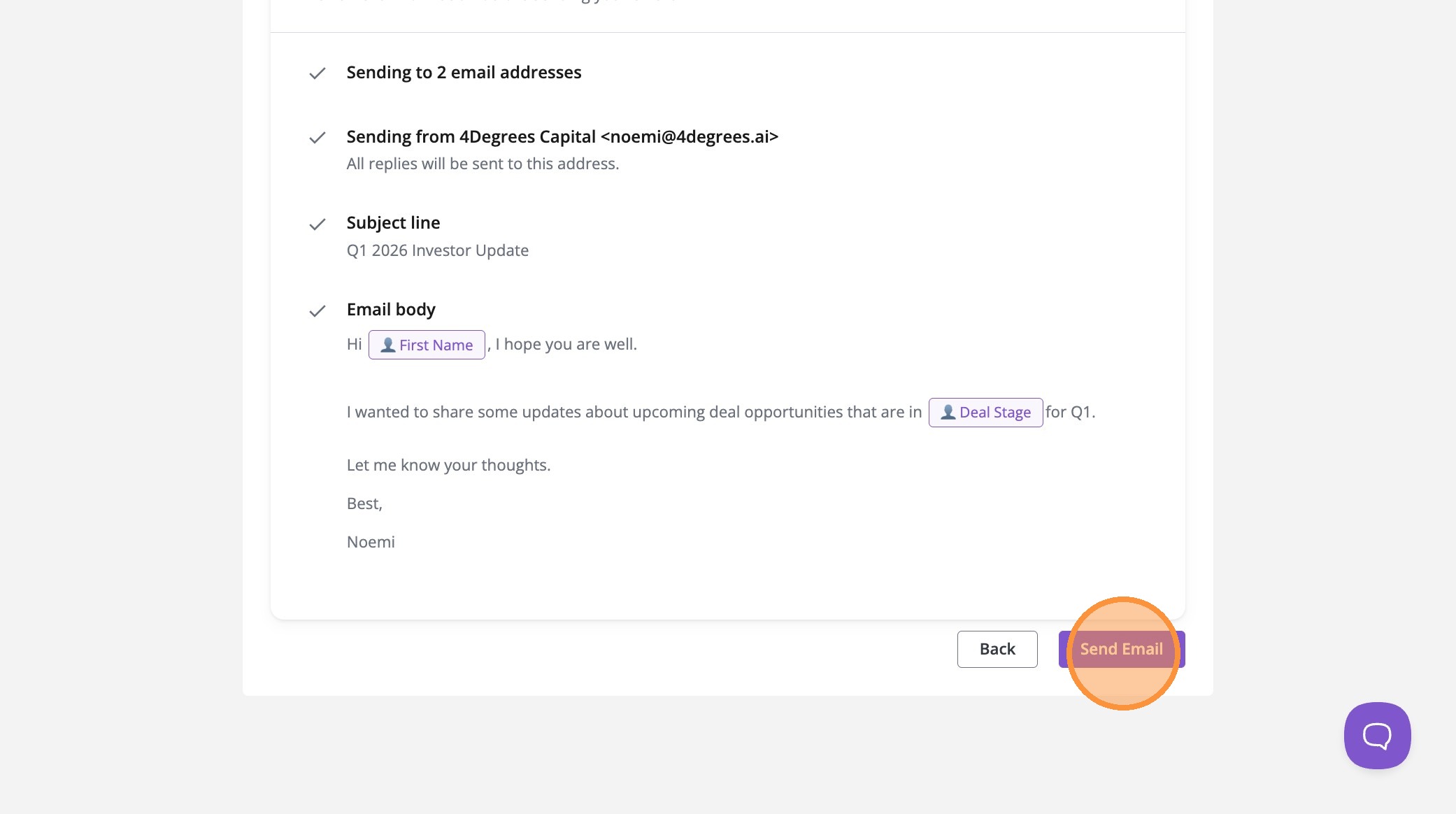
16. Send Your Campaign
Finally, click Send Email to deliver your quarterly update. 🎉 [[enhance your email outreach str…]]
That’s it — your investor update is sent quickly, professionally, and at scale.
17. ⭐ Pro Tip: Use Personalization for Higher Response Rates
Adding variables like First Name or Deal Stage makes your email feel more personal and improves engagement — without requiring manual outreach.
Need Help?
If you have questions about sending campaigns or want best practices for quarterly investor updates, reach out to our team — we’re happy to help.Step