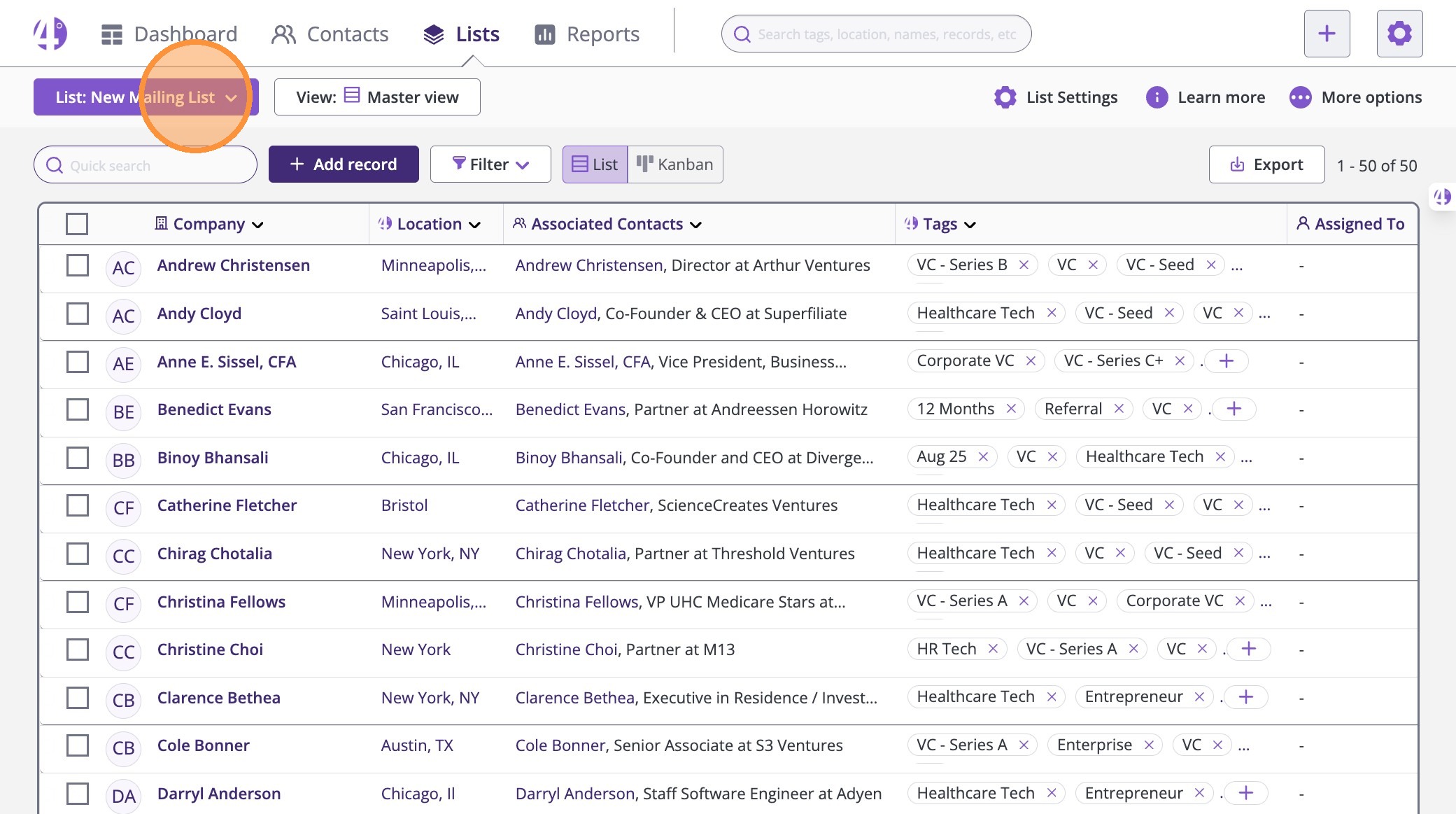
Creating a Contact Lists automatically for Outreach
Creating targeted contact lists in 4Degrees helps you stay organized and makes outreach campaigns faster and easier.
Whether you're managing investors, tracking LP relationships, or building founder pipelines, you can create lists directly from your Contacts section in just a few clicks.
This guide will show you how.
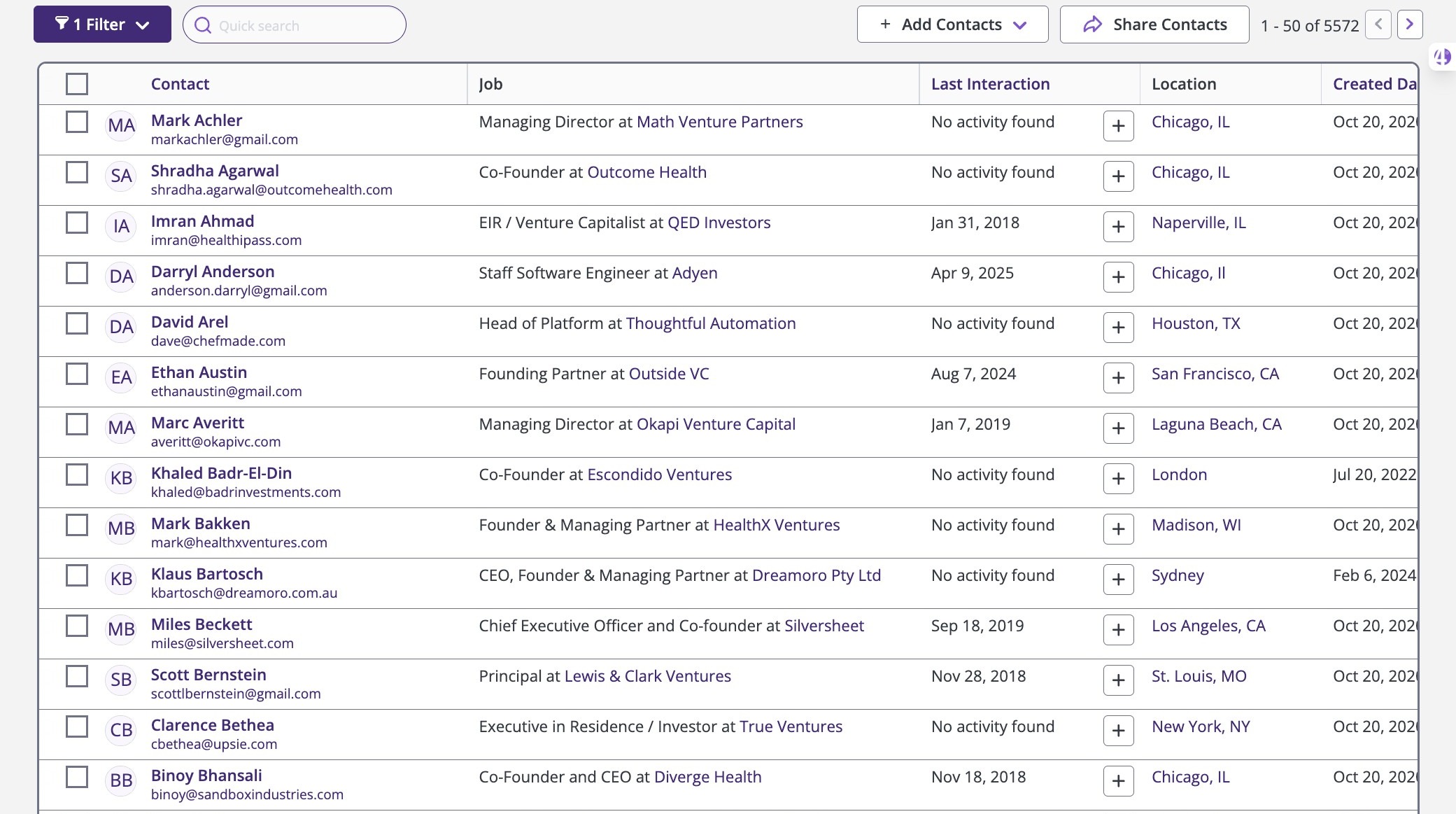
1. Navigate to Contacts
Start by going to the Contacts page in your 4Degrees workspace:
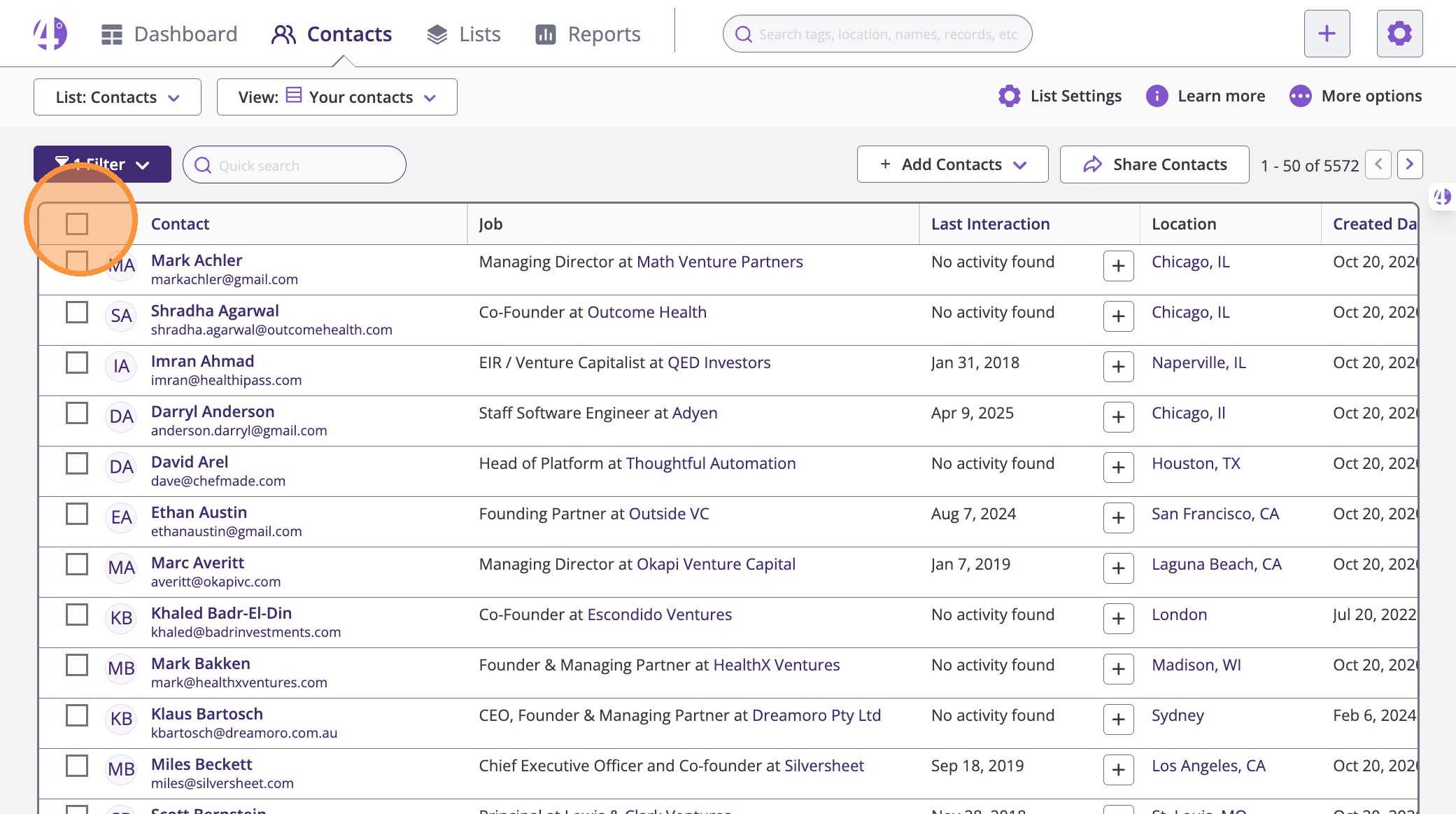
2. Select the Contacts You Want to Add to a List
Once you’re on the Contacts page:
- Click the main checkbox at the top of the table to select all contacts shown on the page
(or manually select specific contacts)
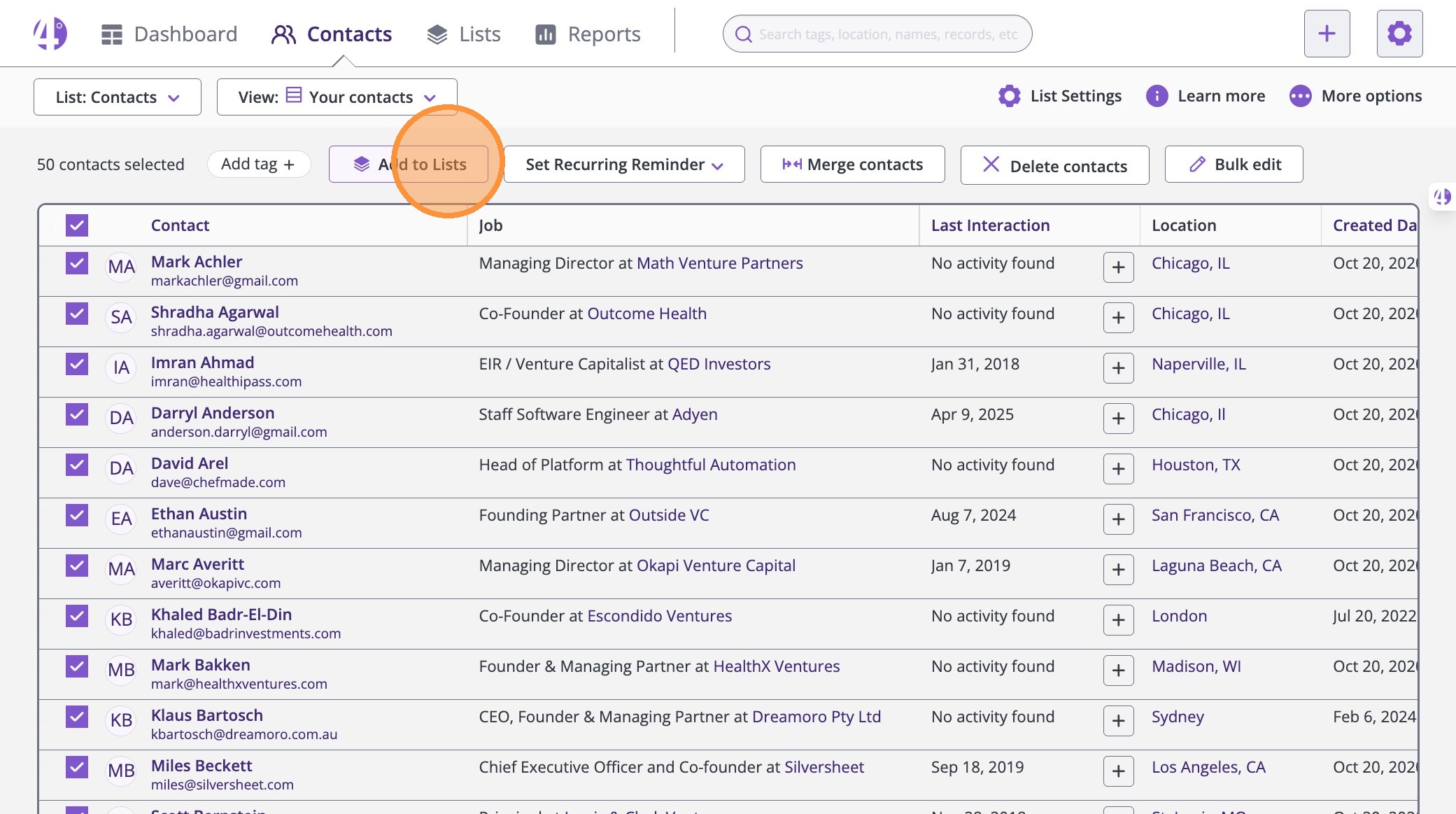
3. After selecting contacts, click Add to Lists
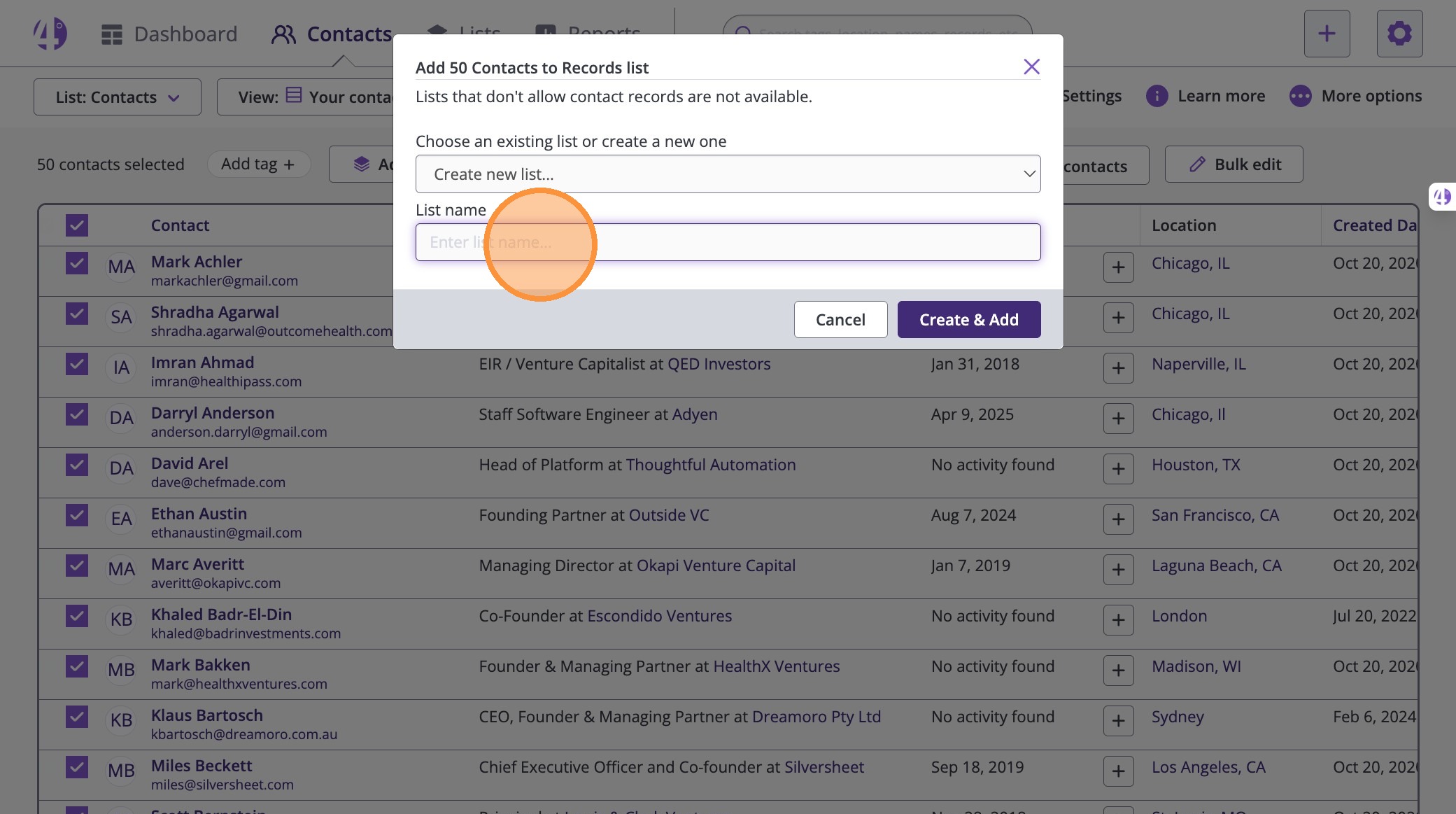
4. Create a New List
A pop-up window will appear.
- Click into the List name field
- Enter the name of your new list
Example: New Mailing List
5. Submit Your List
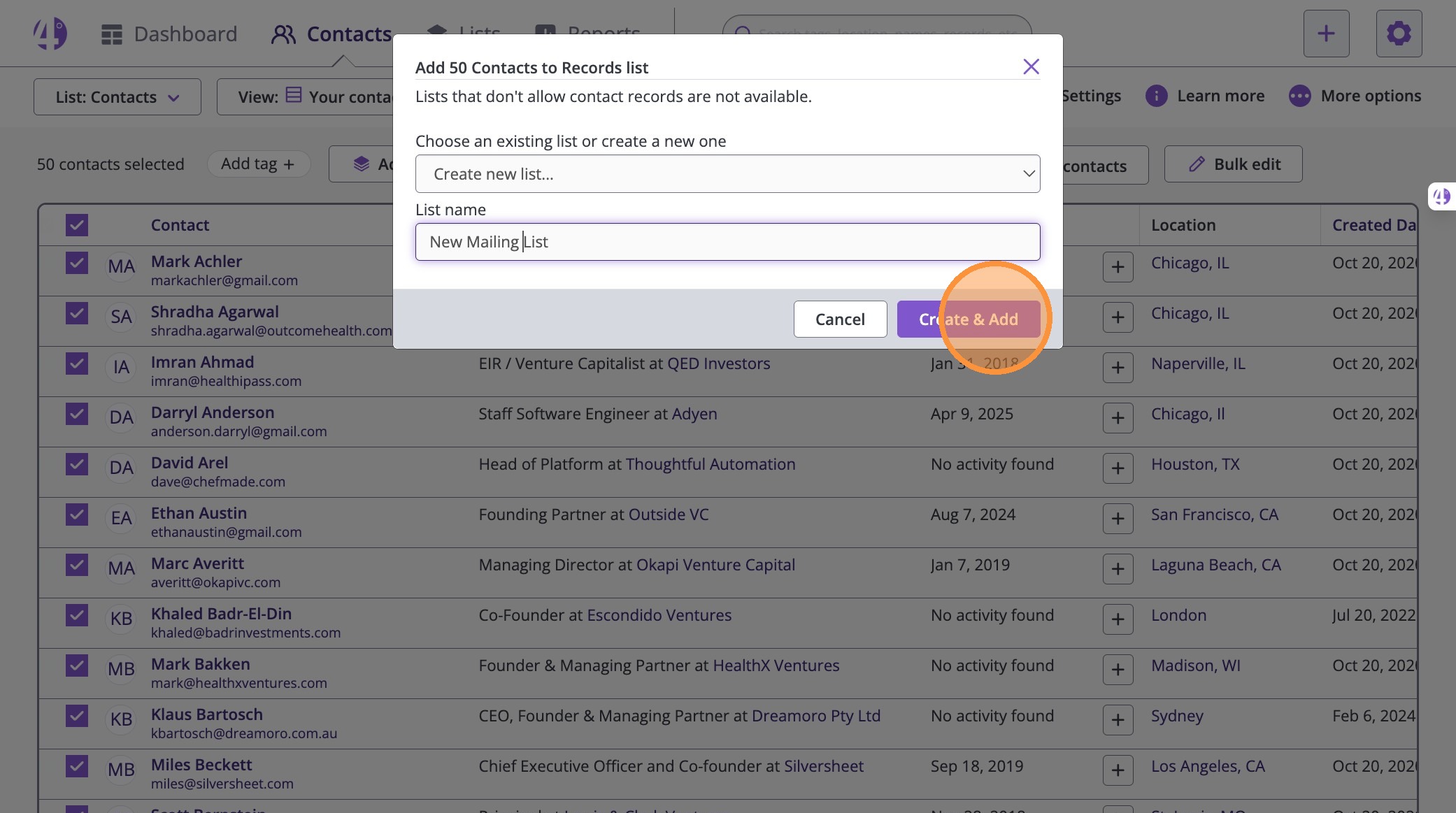
Once your list name is entered:
- Click Create & Add (or Submit)
This will automatically create the list and add your selected contacts.
6. Go to Your New List
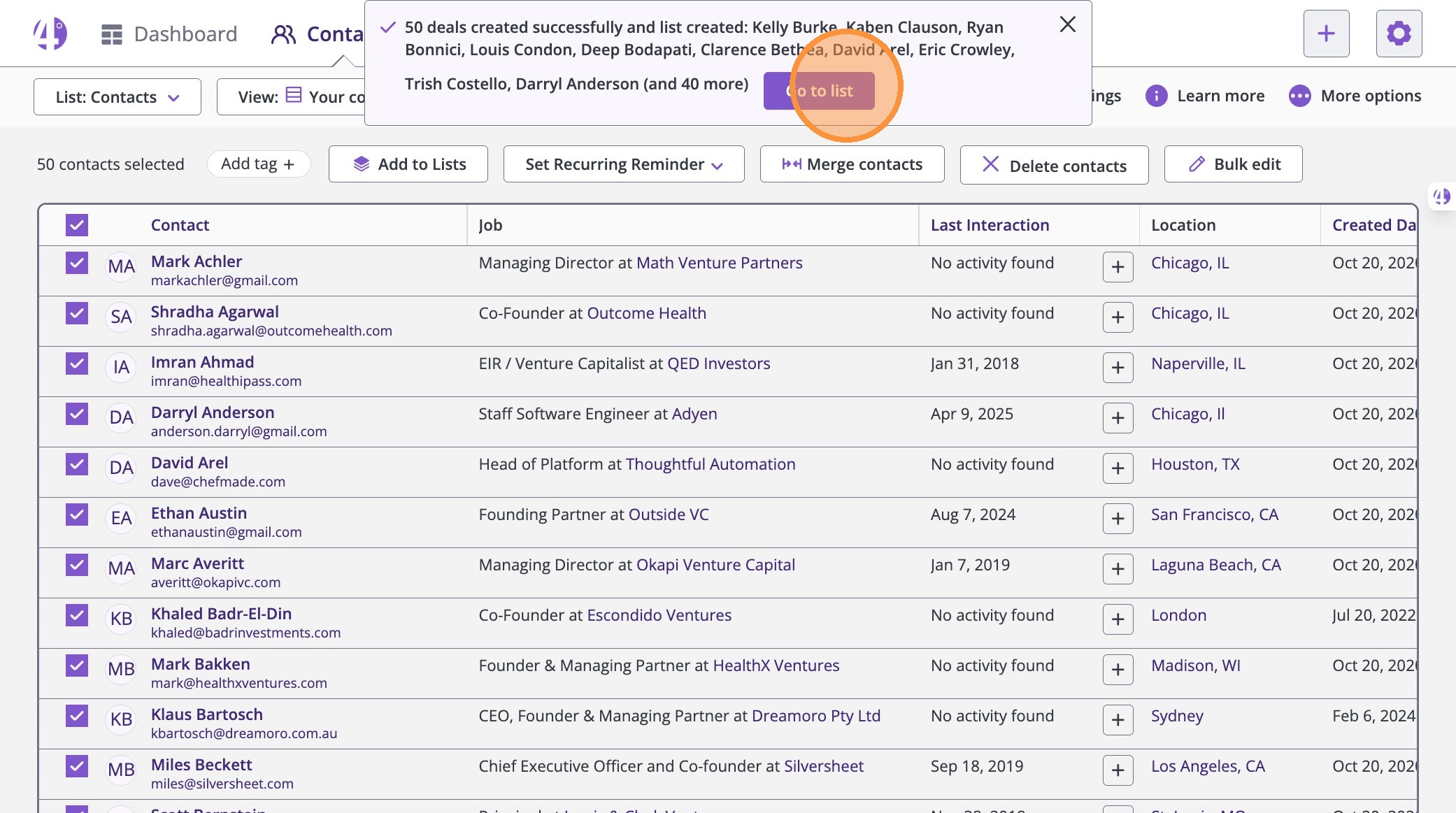
After your list is created, you’ll see a confirmation message.
Click Go to list to open it immediately.
7. Done! 🎉
Your new contact list is now created and ready to use for outreach, reporting, or email campaigns.
By default, your list will include standard fields like contact name, company, location, and associated contacts.